
SwiftNet setup is mostly about doing the boring steps in the right order: pick the right plan, power the device, place it well, connect one device first, test coverage, then troubleshoot. APN settings matter only when the connection does not work normally. Starting with APN is like opening the engine bay because the cupholder squeaked. Bold, unnecessary, and very human.
We may earn a commission when you buy through our links. See our Affiliate Disclosure.
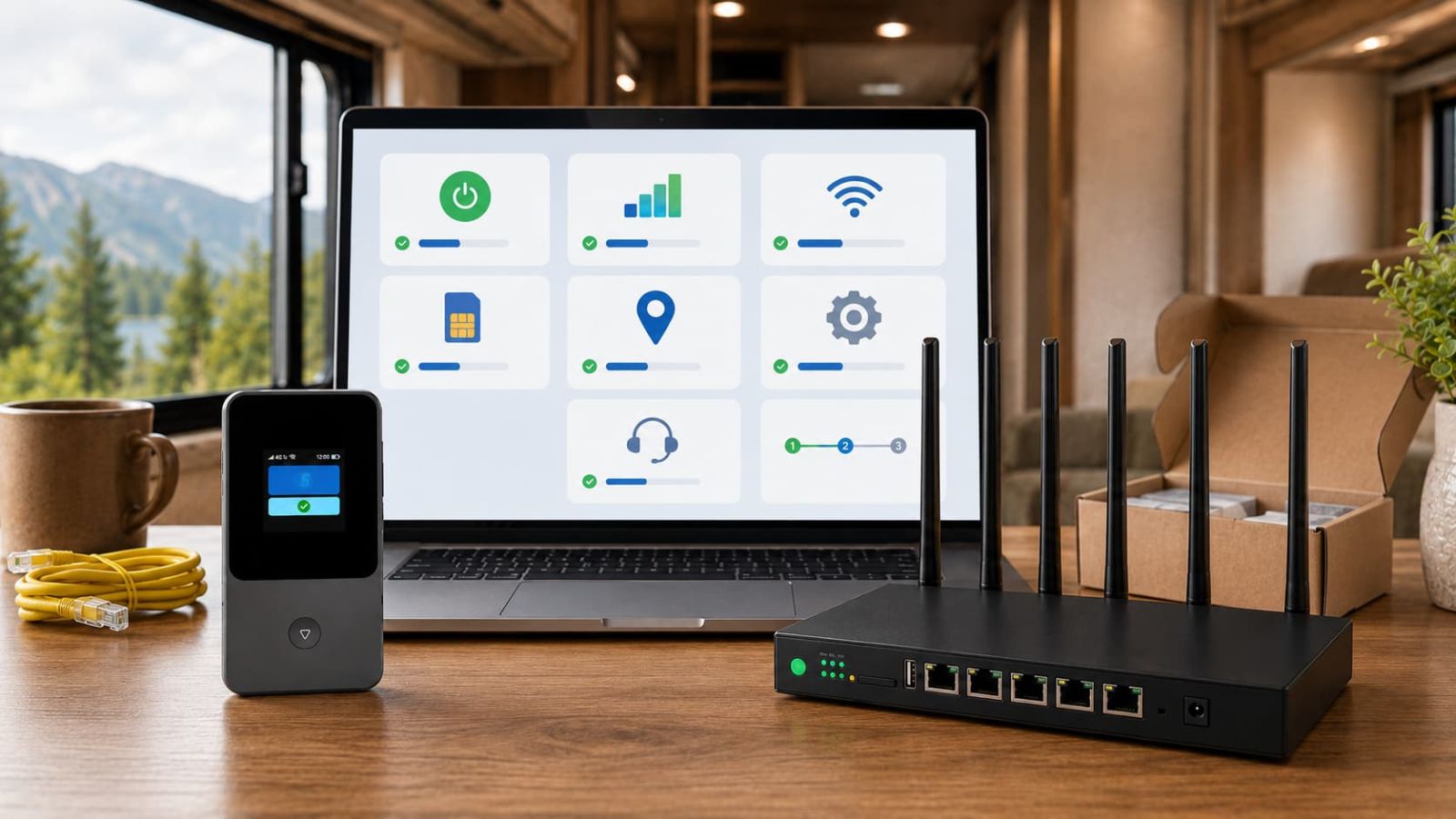
Set up the device before you start changing APN settings.
Most buyers should not begin by changing APN settings. 4G Bronze is the simpler portable hotspot path for lighter backup use. 5G Diamond is the router-style path for RV, rural, remote work, streaming and several devices. If the device connects, leave APN alone. If it does not connect, then coverage, provisioning, placement, APN and support become worth checking.
💸 Simpler setup
4G Bronze is the easier path for maps, email, messages, light browsing, camping backup and travel WiFi fallback.
🏆 Heavier setup
5G Diamond makes more sense when the setup has to carry laptop work, streaming, uploads or multiple devices.
For most buyers, normal activation comes before APN troubleshooting.
The clean setup order is simple: confirm the plan, power the device, place it well, connect one phone or laptop first, test signal and browsing, then add more devices. If that fails, troubleshoot in order. Randomly editing APN first is how small problems become modern art.
Confirm the plan and data option. Make sure you know whether you are setting up 4G Bronze or 5G Diamond.
Power the device fully. Use the adapter or a reliable power source before blaming signal.
Place it near a window. Cellular internet often changes dramatically with placement.
Connect one device first. Test one phone or laptop before adding every gadget in the vehicle.
Run several tests. One lucky or unlucky result is not a setup diagnosis.
For 5G Diamond, antenna matching and placement come before speed judgment.
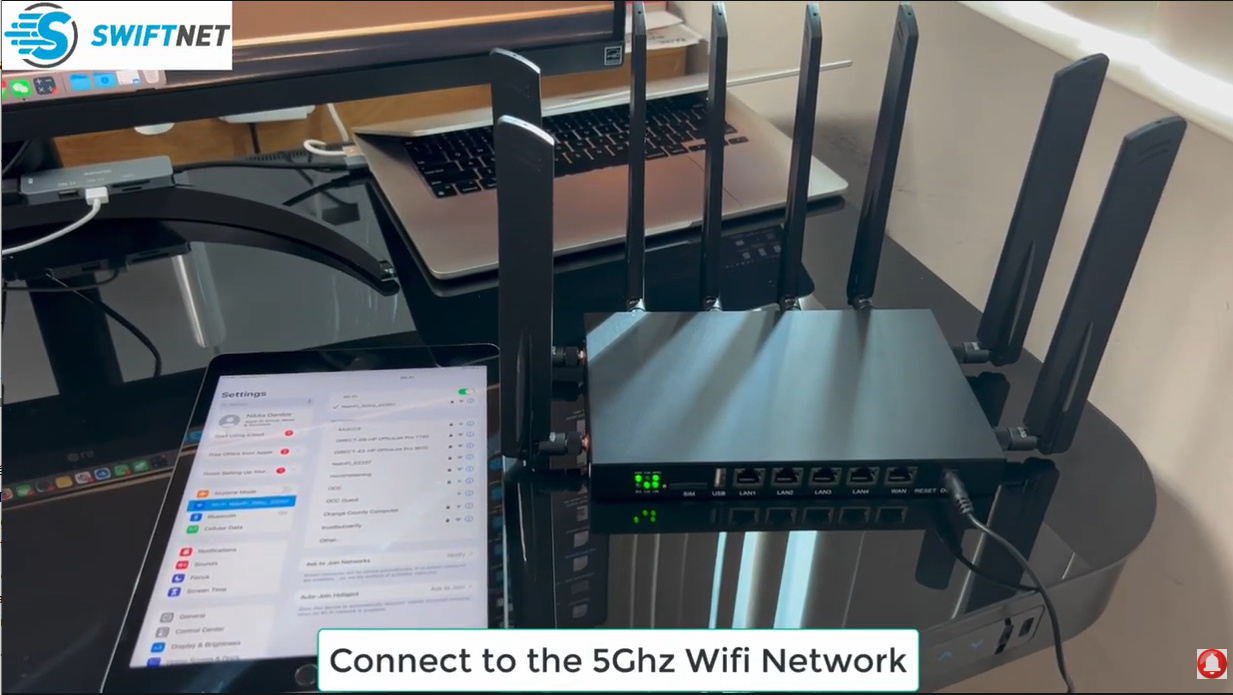
The 5G Diamond setup video shows the practical path: router body, eight antennas, Ethernet cable and power adapter; match the 2.4G/5.8G antennas to the matching ports, match the 4G/5G antennas to the 4G/5G ports, power the router, place it near a window, connect to the 5GHz WiFi network when speed matters, then run more than one speed test.
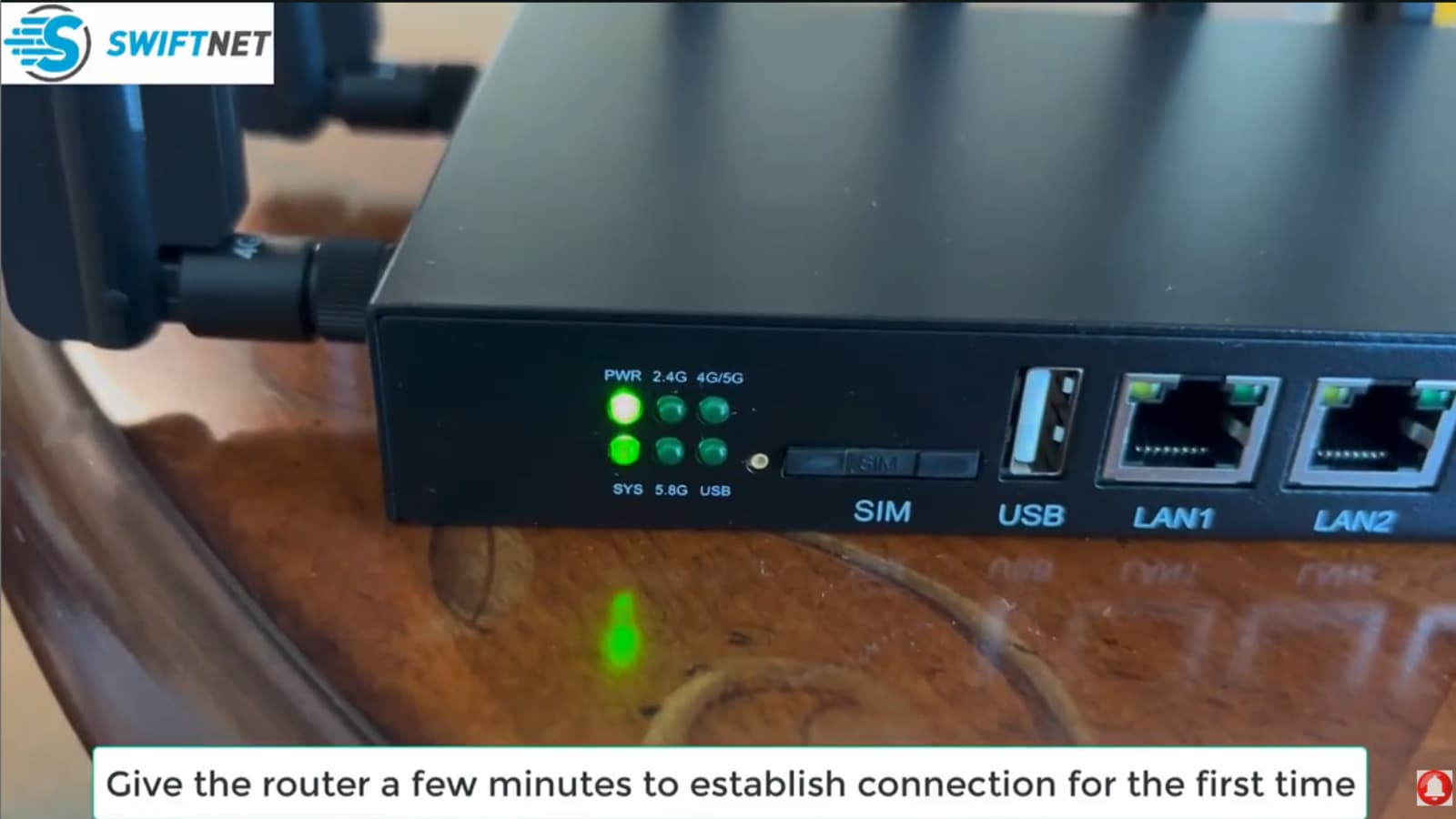
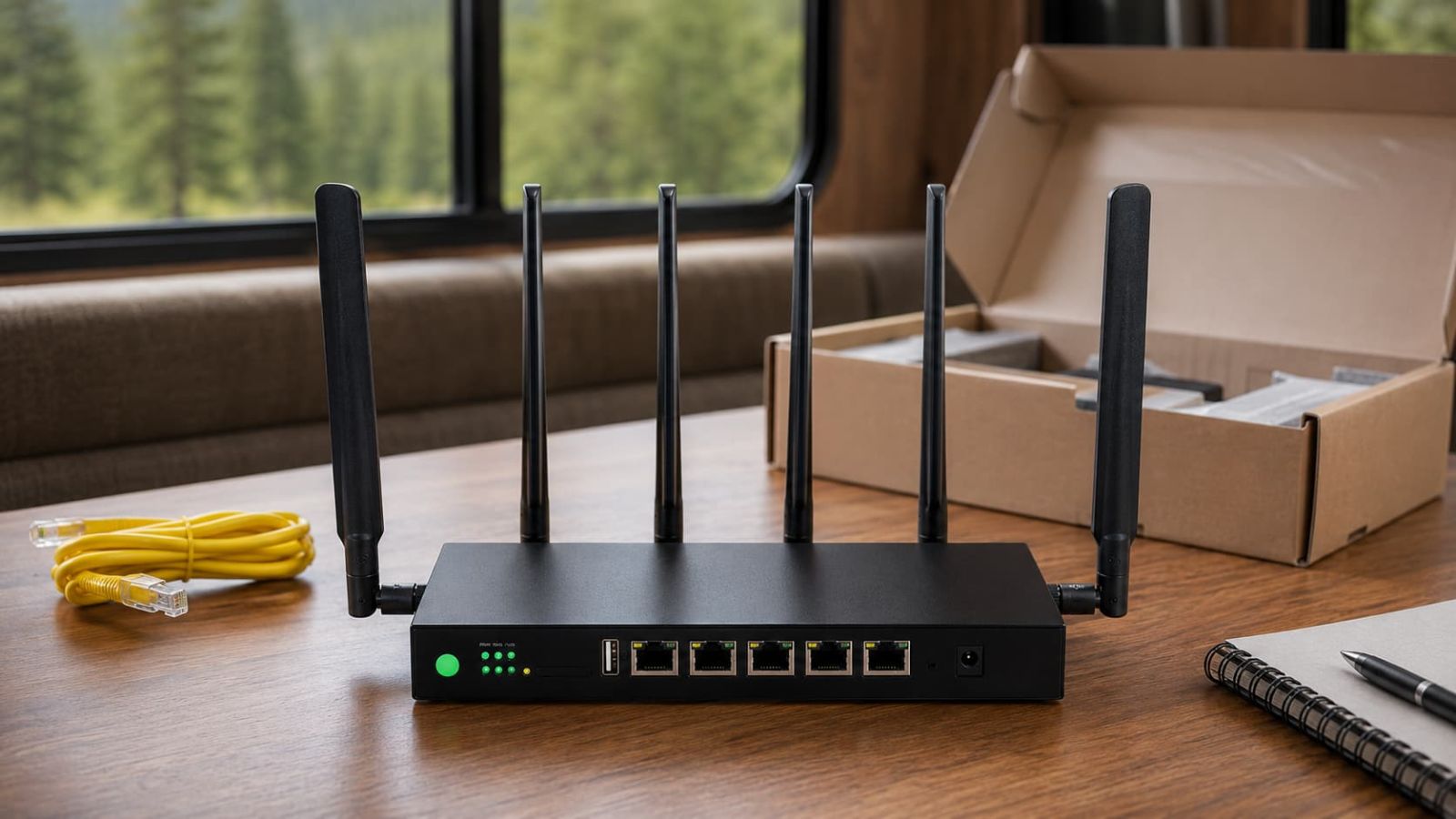
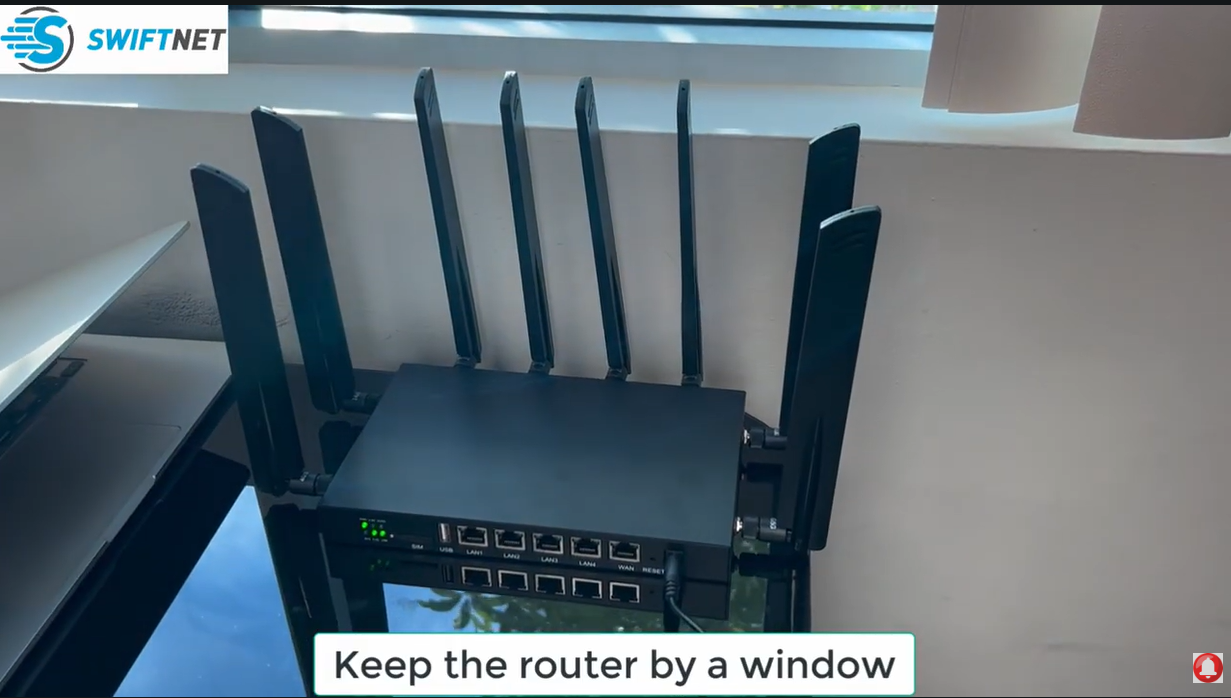
Router setup, antenna matching and speed test
Use this video if you are comparing 5G Diamond for RV, rural, remote-work or heavier multi-device use.
4G Bronze is the simpler activation path for light backup internet.
4G Bronze is easier to recommend if SwiftNet is a backup connection: maps, email, messages, light browsing, hotel WiFi fallback, camping backup or travel internet. It is not the path I would force into heavy video calls, streaming or several-device rural home use unless your tests prove it can handle that workload.
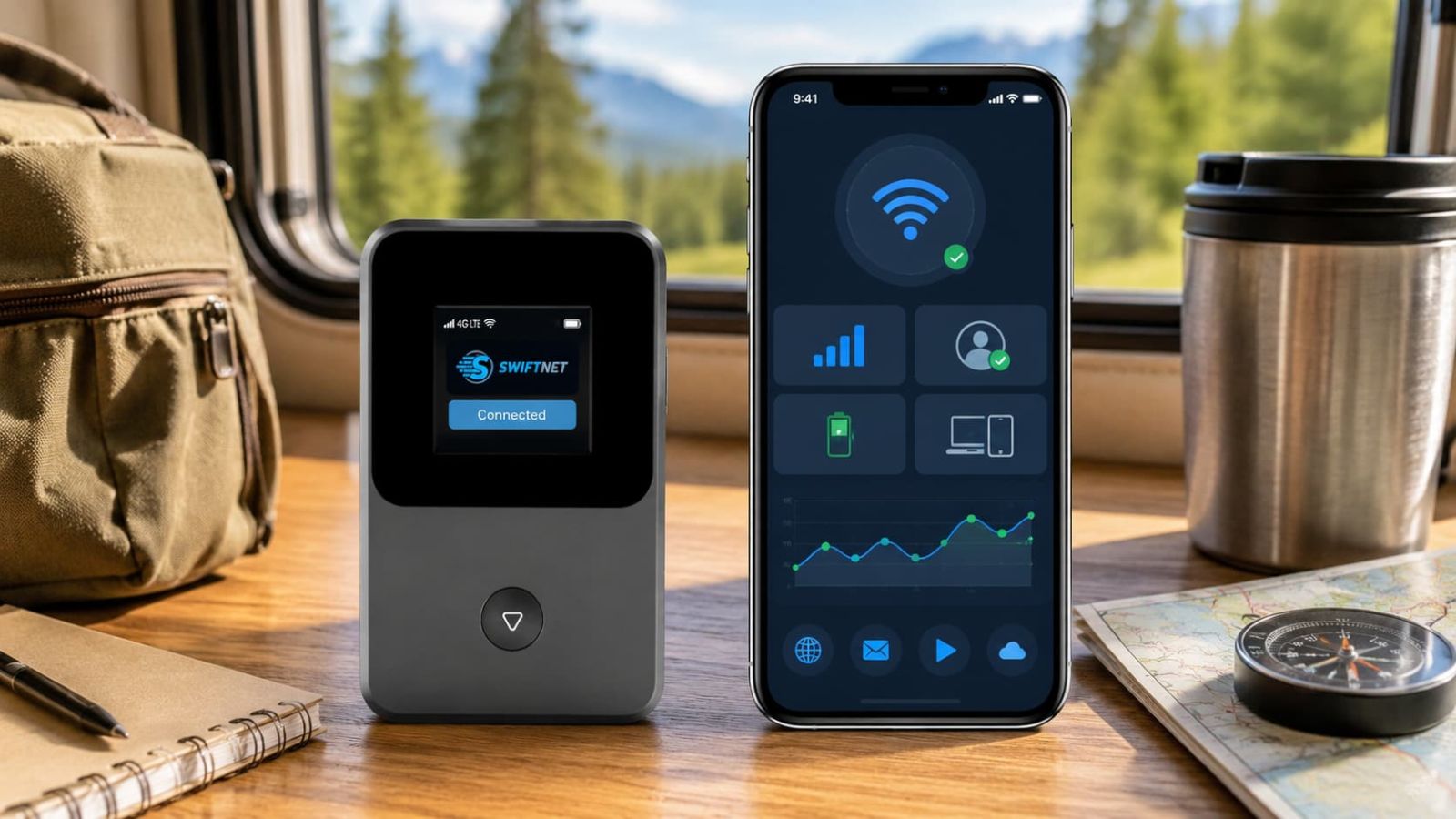
Use 4G Bronze if
- ✅ You want a smaller hotspot-style setup.
- ✅ Your tasks are maps, email, messages and browsing.
- ✅ You need backup for campground, hotel or travel WiFi.
- ✅ You want the lower checked first checkout path.
Upgrade or wait if
- ✕ You need daily video calls or uploads.
- ✕ Several devices stream at the same time.
- ✕ You need router-style placement and stronger setup control.
- ✕ Your location has weak cellular signal.
Portable hotspot activation for lighter use
Use this video if you are comparing 4G Bronze for travel backup, camping, maps, email, messages and light browsing.
Do not guess APN values from random forums.
APN settings are network profile settings for mobile data. They are not a magic speed switch. If your SwiftNet device connects normally, leave APN alone. If it has signal but no data, was reset, or SwiftNet support/device instructions tell you to check APN, then APN becomes a reasonable troubleshooting step.
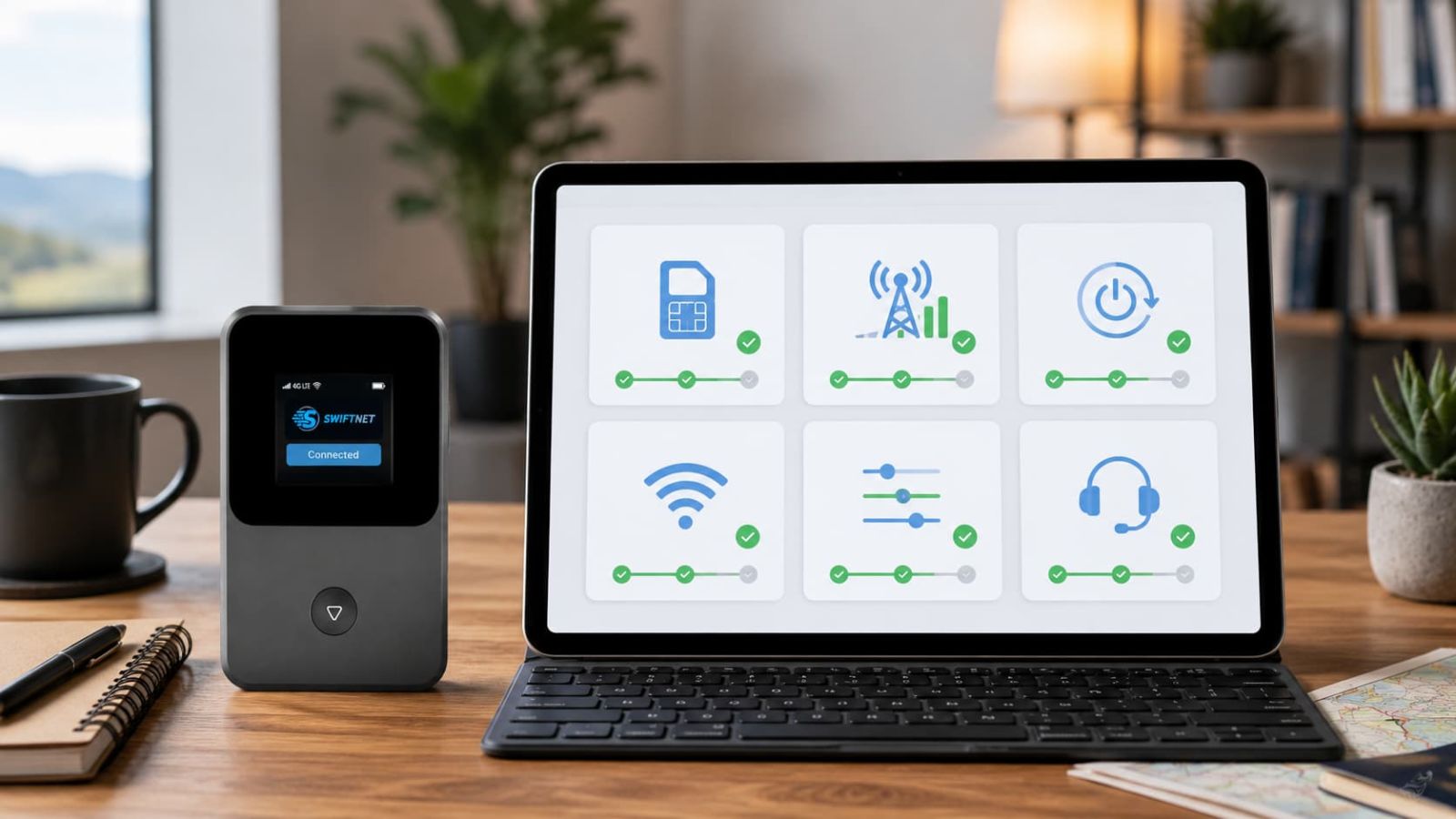
The practical SIM question is whether the device and plan are provisioned correctly.
For buyers, the issue is not just “where is the SIM?” It is whether the device, plan, data option and network profile are active for the location you are testing. Do not remove or change SIM/device settings unless the instructions tell you to. The goal is a working connection, not a tiny hardware adventure.
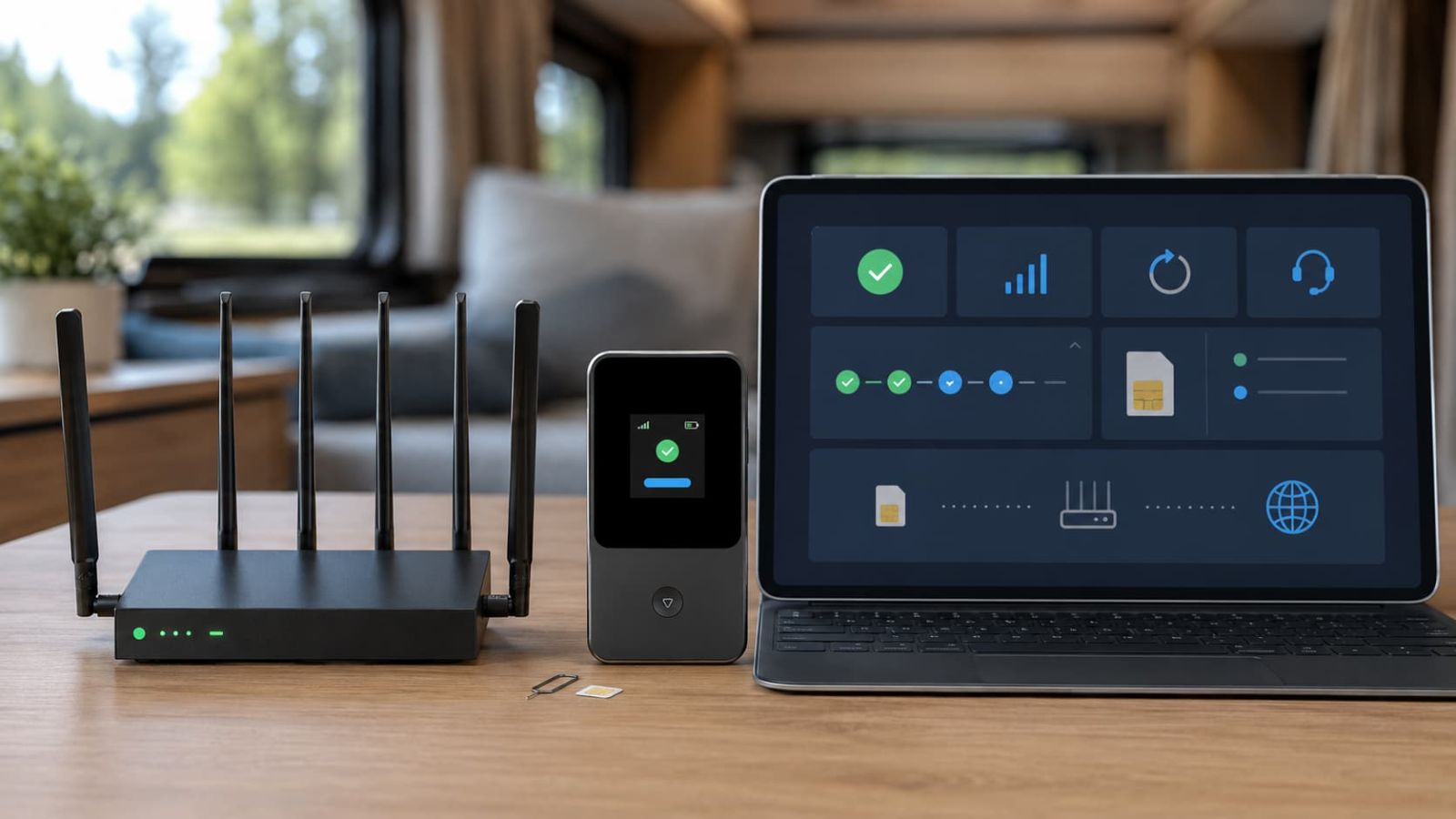
Confirm the selected plan. 4G Bronze and 5G Diamond are different setup paths.
Confirm activation status. If the device sees signal but no data, provisioning may be part of the problem.
Confirm support path. Contact support before guessing SIM or APN changes.
Fix the obvious setup problems before blaming the plan.
Most setup problems are boring: power, placement, signal, device load, provisioning or a device-specific setting. Boring fixes are still fixes. They just do not make anyone feel like a network engineer, which is probably for the best.
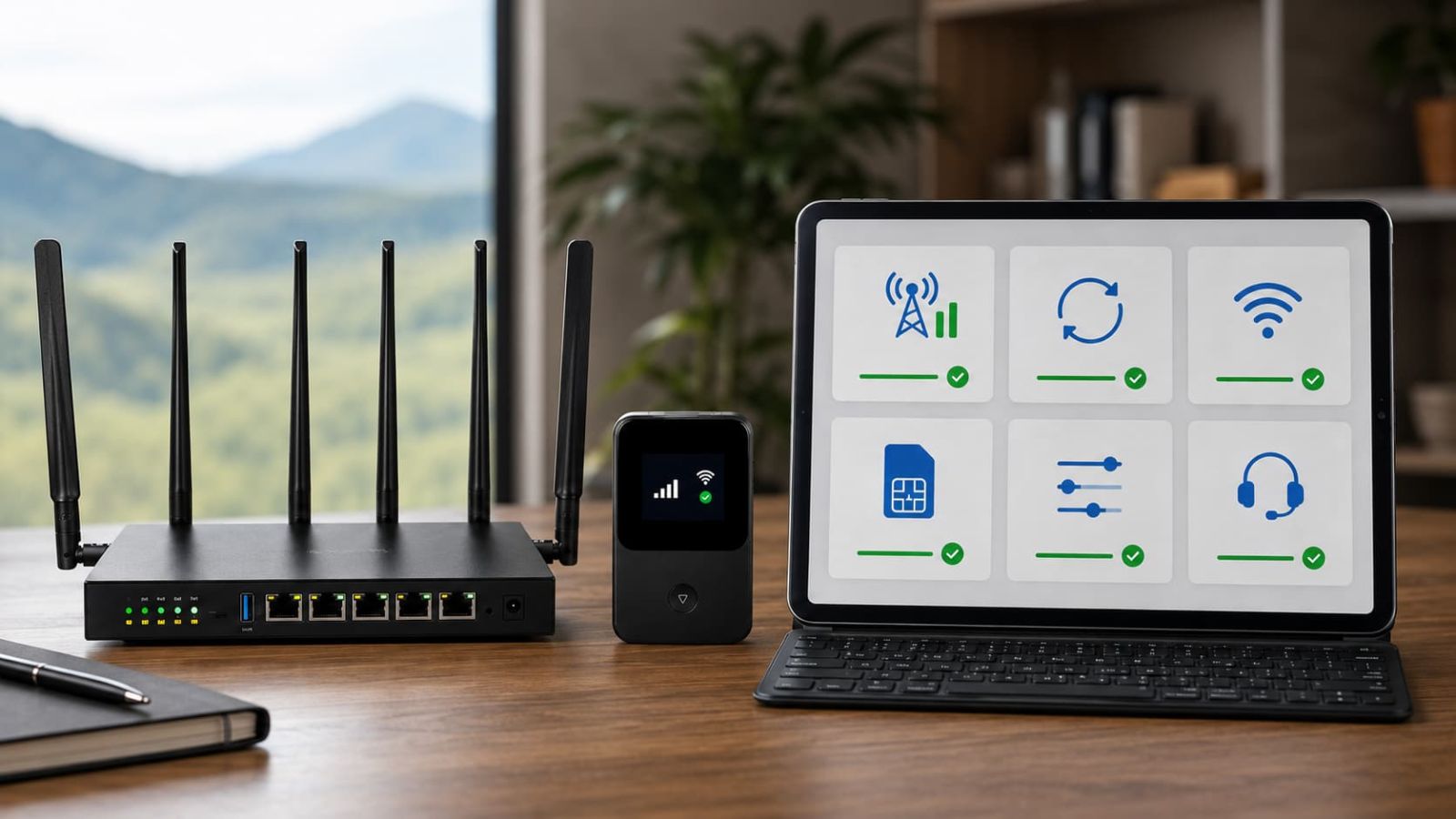
Test where you actually use SwiftNet, not where the photo looks nicest.
RV walls, cabin placement, wooded campsites and rural valleys can change cellular performance more than most people expect. Test near a window, test one device first, test during the hours you actually use it and keep power stable.
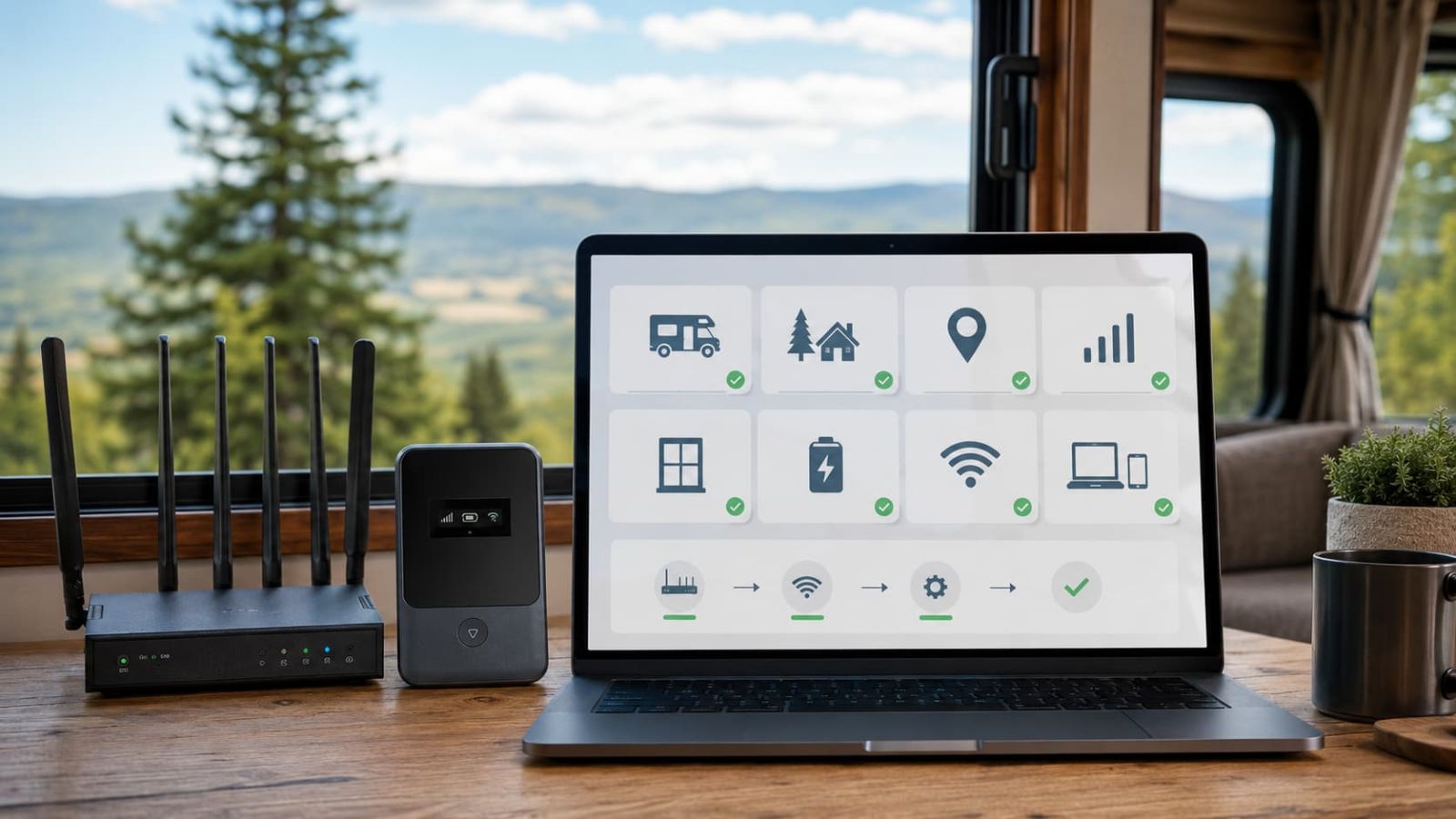
Start near a window.
Metal, walls and appliances can make a decent router look bad. Move it before judging it.
Test the exact site.
A campground entrance can have a better signal than the wooded loop where you actually park.
Try several rooms.
Window, height and side of the building can change the result.
Keep power simple.
A stable device still needs a stable power routine. Shocking, but electricity remains involved.
Activation is not separate from checkout. The clock and subtotal still matter.
Before buying, check ORION04, selected data option, device rent or buy terms, shipping, taxes, trial timing and recurring subtotal. Setup confidence is useful only if you test early enough to make a good keep-or-return decision.
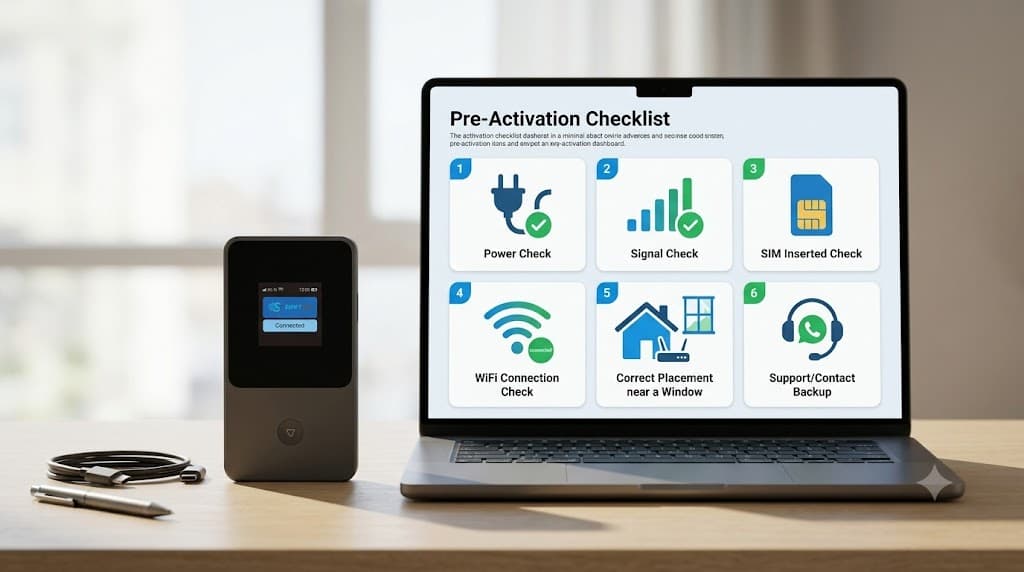
This guide is for buyers who want setup confidence before paying.
Use this guide if
- ✅ You want to set up 5G Diamond or 4G Bronze correctly.
- ✅ You are worried about APN, SIM or activation issues.
- ✅ You need RV, camping, rural or travel setup guidance.
- ✅ You want to know what to check before buying.
Start elsewhere if
- ✕ You are still choosing plans by price.
- ✕ You need a full coverage decision first.
- ✕ You only want a speed test comparison.
- ✕ Your device already works and you just need the coupon page.
SwiftNet setup is not hard, but it is not magic either.
Coverage still decides a lot.
A correct setup cannot create signal in a dead zone.
APN is easy to overthink.
Leave it alone unless setup fails or support tells you to check it.
5G Diamond has more hardware steps.
The antennas matter. Match them before judging speed.
The trial window does not wait for procrastination.
Test early, because future you is very confident and often wrong.
SwiftNet APN Settings & Activation FAQ
Start with setup basics. Touch APN only when the basics fail.
Use 4G Bronze if you want the simpler portable hotspot path for lighter backup internet. Use 5G Diamond if you need router-style setup for RV, rural, remote work, streaming or several devices. For both, test power, placement, coverage and one-device connection before changing APN settings.